> For the complete documentation index, see [llms.txt](https://docs.yarnspinner.dev/llms.txt). Markdown versions of documentation pages are available by appending `.md` to page URLs; this page is available as [Markdown](https://docs.yarnspinner.dev/2.5/beginners-guide/syntax-basics.md).
# Syntax Basics
The first step in our three-step beginner's guide to Yarn Spinner: learning the syntax of Yarn with Try Yarn Spinner.
## Writing Yarn with Try Yarn Spinner
When you first start learning Yarn, the best tool to work with is [**Try Yarn Spinner**](https://try.yarnspinner.dev/), so fire up your web browser—no installation necessary!
Open your web browser, and navigate to **Try Yarn Spinner** at [https://try.yarnspinner.dev](https://try.yarnspinner.dev/)
In **Yarn**, everything you write is text. Yarn files are just plain text files with a .yarn extension.
Everything inside a Yarn file is structured around **nodes** and **lines**.
In **Try Yarn Spinner**, the first node to run is always called **Start**, so we’ll write that now.
title: Start
---
Narrator: Hi, I'm the narrator for this beginner's guide!
===
Copy and paste, or write, the above Yarn script into Try Yarn Spinner!
The title of a node is important, because your game uses node titles to tell Yarn Spinner which node to start running. You also use the title of a node when you want to jump to another node.
So this node is titled “Start”.
Node titles are not shown to the player and must start with a letter, and can contain any letters, numbers and underscores, but cannot contain a period or other symbols.
Node headers can actually contain any number of lines with the structure **`key: value`**. This can be used to store additional information, such as the in-game location the conversation is taking place.
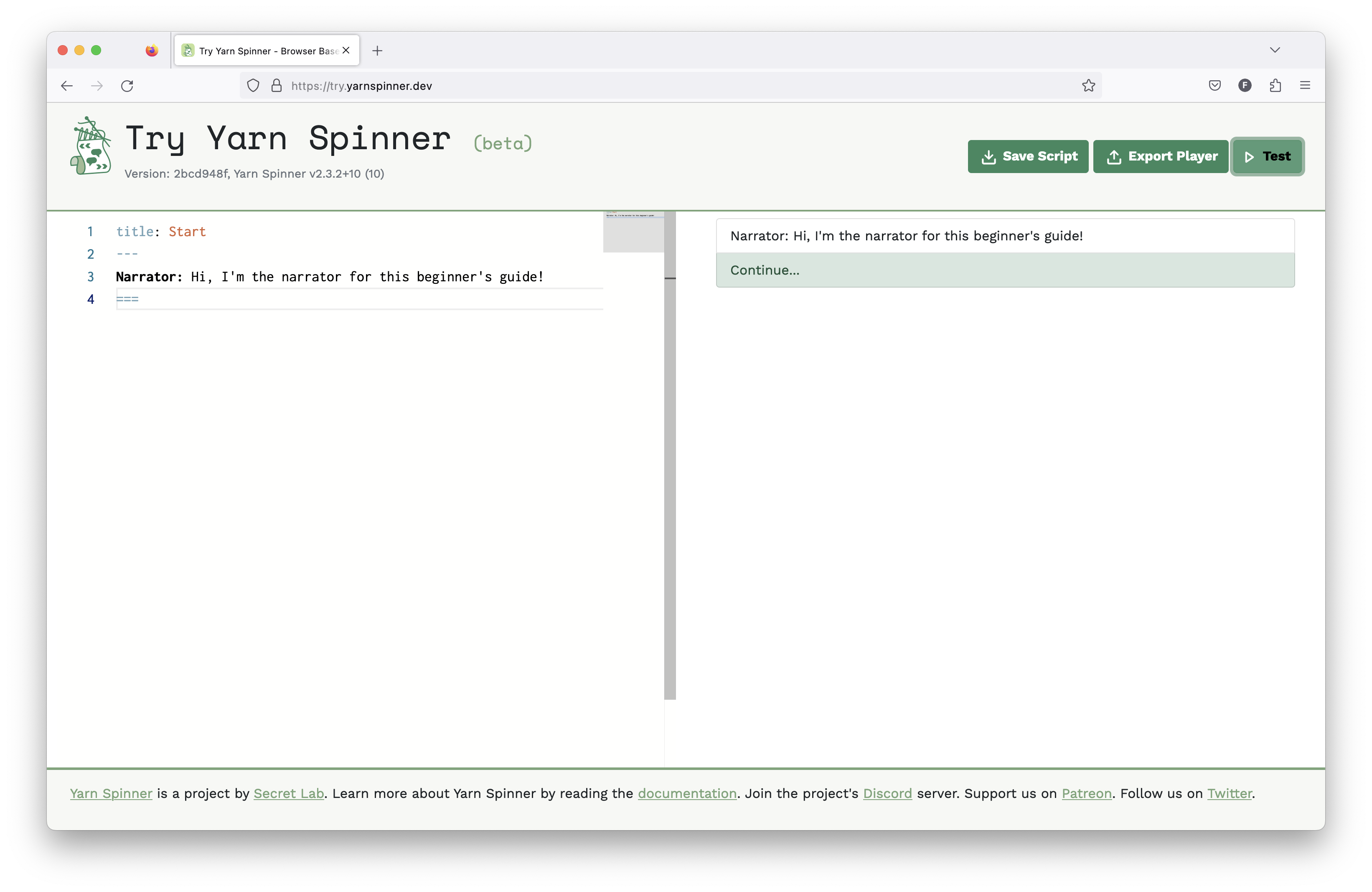
If you put the above **Yarn**, or something very similar, into [**Try Yarn Spinner**](https://try.yarnspinner.dev/) and click the Test button, you’ll see the dialogue appear in the right side of the screen.
Running a script with the Test button in Try Yarn Spinner
## Getting a bit more complex
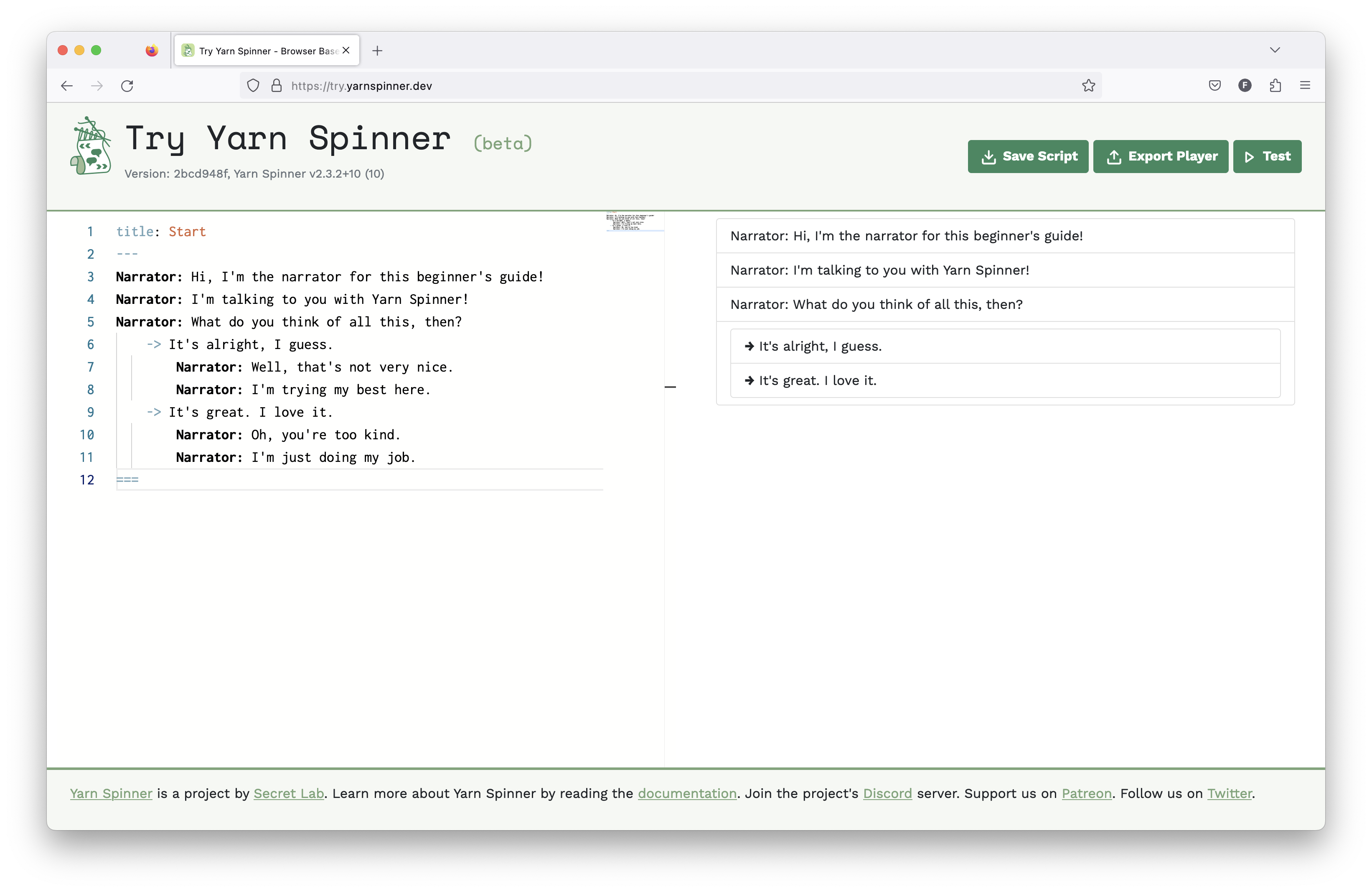
Let’s make it a bit more complex. Update the Yarn to look like the following:
title: Start---
Narrator: Hi, I'm the narrator for this beginner's guide!
Narrator: I'm talking to you with Yarn Spinner!
Narrator: What do you think of all this, then?
-> It's alright, I guess.
Narrator: Well, that's not very nice.
Narrator: I'm trying my best here.
-> It's great. I love it.
Narrator: Oh, you're too kind.
Narrator: I'm just doing my job.
===
Update the script in Try Yarn Spinner to the above Yarn and try running it.
In this node, there are the following elements:
* the header, with the node’s title
* the `---` marker, which indicates where the body of a node begins
* some lines, representing a Narrator speaking…
* and the `===` marker, which indicates the end of a node
Let’s chat about lines…
**Almost everything is a line**\
When you write Yarn Spinner dialogue, just about every line of text that you write in a node is a **line**.
When a node is run, Yarn Spinner runs each line, one at a time, and sends it to your game.
A line of dialogue is just the thing you want some entity or character to say, usually beginning with the name of the entity speaking.
```yaml
Mae: Well, this is great.
Mae: I mean I didn't expect a party or anything
Mae: but I figured *someone* would be here.
Mae: ...
Mae: Welcome home, Mae.
```
Yarn Spinner sends each of these lines, one at a time, to the game. The game is responsible for taking the text, and presenting it to the player; in the case of *Night in the Woods*, this means drawing the speech bubble, animating each letter in, and waiting for the user to press a key to advance to the next line.
Lines of dialogue can contain just about any text, except for some special characters that Yarn Spinner uses to add extra information to a line.
If there is a set of characters without spaces before a colon (:) at the beginning of the line, Yarn Spinner will mark that as the name of the character. This information will then be passed to your game, so that you can change the way that lines are shown based on the character who's saying them. For example:
```yaml
This is a line of dialogue, without a character name.
Speaker: This is another line of dialogue said by a character called "Speaker"
```
## Options provide choices within nodes
After the lines of the Narrator speaking you’ll notice some lines that are indented, and start with a `->` interspersed amongst other lines from the Narrator:
```yaml
title: Start
---
Narrator: Hi, I'm the narrator for this beginner's guide!
Narrator: I'm talking to you with Yarn Spinner!
Narrator: What do you think of all this, then?
    -> It's alright, I guess.
        Narrator: Well, that's not very nice.
        Narrator: I'm trying my best here.
    -> It's great. I love it.
        Narrator: Oh, you're too kind.
        Narrator: I'm just doing my job.
===
```
These lines are called **options**, and they are how you let the player decide what to say. Options let you show multiple potential lines of dialogue to the player, who is then able to choose one.
As you might’ve guessed, an option line is denoted by starting the line with a `->`
After that, the content of the line is like any other line.
If you put the above, updated **Yarn**, or something very similar, into [**Try Yarn Spinner**](https://try.yarnspinner.dev/) and click the Test button, you’ll see the dialogue appear in the right side of the screen, and as you progress through it, eventually you’ll hit some options, which are presented to the player:
Depending on the choice of option, one set of lines from the Narrator, reacting to the player’s choice, will be displayed.
### Nesting options within options
You can also **nest options inside other options**:
```yaml
title: Start
---
Narrator: Hi, I'm the narrator for this beginner's guide!
Narrator: I'm talking to you with Yarn Spinner!
Narrator: What do you think of all this, then?
-> It's alright, I guess.
Narrator: Well, that's not very nice.
Narrator: I'm trying my best here.
-> Are you really? I don't think so.
Narrator: Well, I never!
Narrator: I'm going to have to have a word with the writer.
-> Oh, OK. I'm sorry.
Narrator: That's better.
Narrator: I'm glad we could resolve this.
-> It's great. I love it.
Narrator: Oh, you're too kind.
Narrator: I'm just doing my job.
-> You're doing a great job.
Narrator: Oh, stop it, you.
Narrator: You're making me blush.
-> You're a natural.
Narrator: Oh, you.
Narrator: I'm just doing my job.
===
```
Put the above script in Try Yarn Spinner, and click Test to run it!
The only new thing that’s happening here is that options are inside other options. If you play this, inside Try Yarn Spinner, then you’ll be able to interact with the options based on the choices you make.
Have lots of options can get complex, so it’s often a good opportunity to **break your story up into nodes** and **jump between them**. We’ll do that next.
## Jumping between nodes
You might have noticed that it’s a bit hard for you, the writer, to follow what’s going on, when you start nesting too many options, have lots and lots of lines of dialogue, or a combination thereof.
When things start to become too much for a single node, you can break things into multiple nodes and use the `<>`statement to, you guessed it… **jump** to another node.
Here’s an example of the `<>` statement in action:
```yaml
title: Start
---
Narrator: Hi, I'm the narrator for this beginner's guide!
Narrator: I'm talking to you with Yarn Spinner!
Narrator: What do you think of all this, then?
-> It's alright, I guess.
<>
-> It's great. I love it.
<>
===
title: Alright
---
Narrator: Well, that's not very nice.
Narrator: I'm trying my best here.
-> Are you really? I don't think so.
Narrator: Well, I never!
Narrator: I'm going to have to have a word with the writer.
-> Oh, OK. I'm sorry.
Narrator: That's better.
Narrator: I'm glad we could resolve this.
===
title: Love
---
Narrator: Oh, you're too kind.
Narrator: I'm just doing my job.
-> You're doing a great job.
Narrator: Oh, stop it, you.
Narrator: You're making me blush.
-> You're a natural.
Narrator: Oh, you.
Narrator: I'm but a humble narrator.
===
```
Put the above script in Try Yarn Spinner, and click Test to run it, and observe how the jumps work.
By now, hopefully, you’re seeing what’s going on here, but let’s go through it to make sure.
In this yarn script there are three **nodes**: `Start`, `Alright`, and `Love` and, depending on the choice made by the player inside the `Start` node, the conversation will jump to `Alright` (if they’re a bit rude) or `Love` (if they’re somewhat polite).
The **jump statement** is used to move the narrative to a different node, and takes a single parameter, which is the full title of the node you want to jump to, and you can see it in use in our `Start` node:
```yaml
title: Start
---
Narrator: Hi, I'm the narrator for this beginner's guide!
Narrator: I'm talking to you with Yarn Spinner!
Narrator: What do you think of all this, then?
-> It's alright, I guess.
<>
-> It's great. I love it.
<>
===
```
Separating dialogue segments into nodes can aid in writing neater files that are easier to edit as they grow.
Sometimes it makes sense for the options presented or the outcomes of selecting different options to vary based on other things the player has done or said up until this point. This requires the use of **logic** and **variables**, which we'll discuss next.
## Logic and variables
Of course, **Yarn is actually a full programming language**, which means it has support for writing code that **stores information in variables**.
Yarn has three **types** of variables, **numbers**, **strings**, and **booleans**:
| Type | Possible Values | Examples |
| ------- | -------------------------------------------------------------------------- | --------------------------------- |
| Number | Any whole or decimal number | 1, 2.5, 3468900, -500 |
| String | Any sequence of letters, numbers and other characters, enclosed in quotes. | "Hello", "✓", "A whole sentence." |
| Boolean | Either the value true or the value false. | true, false |
Variables can be **declared**, **set,** and **checked**.
{% hint style="info" %}
You can learn more about this in the [Writing in Yarn](/2.5/beginners-guide/writing-narratives.md) guide. We recommend finishing this Beginner's Guide first, though.
{% endhint %}
### Declaring variables
A variable is declared using a **declare statement**. It looks like this:
```python
<>
```
This declare statement declares a new variable named `$characterName` and stores the value `"Shadowheart"` inside it. When you first declare a variable, that sets its type.
So this variable, `$characterName`, will always be of type **string**, because we declared it with a string, `"Shadowheart"`.
Here’s an example of declaring two more variables, one of type **number**, and one of type **boolean**:
```python
<>
<>
```
Every variable you use **must have a name**; in Yarn, **all variable names start with a dollar sign** (**`$`**).
As with node titles, variable names must not contain spaces. While they can contain a range of different characters the first character must be a letter.
Your variable names will be made up of only letters, numbers and underscores.
### Setting variables
Of course, it’s not much use to declare a variable, if you can’t update it later. We call updating the contents of a variable **setting**. A variable is set using the **set statement**.
Here’s how we’d update the `$characterName` variable to a new name:
```python
<>
```
Because `$characterName` was declared as type string, you cannot then set it to a number, or a boolean, so the following **will not work:**
```python
<>
```
A variable must always have a value. There is no concept of null, or an empty variable in Yarn.
### Expressions and variables
You can work with the values inside variables. For example, numbers can be multiplied, strings can be added together, and boolean values can have logical operations (like *and* and *or*) applied to them.
When values are used together like this, it's called an **expression:**
```python
<>
<>
```
An expression needs to be a single type. You can't work with values of different types in a single expression. For example, the following code will **not** work:
```yaml
<> // this will not work
```
#### Operators
Yarn Spinner supports the following logical operators. Most of these have multiple ways being written:
* Equality: `eq` or `is` or `==`
* Inequality: `neq` or `!`
* Greater than: `gt` or `>`
* Less than: `lt` or `<`
* Less than or equal to: `lte` or `<=`
* Greater than or equal to: `gte` or `>=`
* Boolean 'or'': `or` or `||`
* Boolean 'xor': `xor` or `^`
* Boolean 'not': `not` or `!`
* Boolean 'and': `and` or `&&`
**Maths operators**
* Addition: `+`
* Subtraction: `-`
* Multiplication: `*`
* Division: `/`
* Truncating Remainder Division: `%`
* Brackets: `(` to open the brackets and `)` to close them.
**Order of operations**
Yarn Spinner follows a fairly standard order of operations, and falls back to using left to right when operators are of equivalent priority.
The order of operations is as follows:
1. Brackets
2. Boolean Negation
3. Multiplication, Division, and Truncating Remainder Division
4. Addition, Subtraction
5. Less than or equals, Greater than or equals, Less than, Greater than
6. Equality, Inequality
7. Boolean AND, Boolean OR, Boolean XOR
## Checking and using variables
Variables by themselves aren’t much good if they cannot have some sort of impact on your narrative. So, of course, they can!
The most straightforward way to use a variable is to **show the contents of it in a line**. To do this we refer to the variable by name inside a line, and put it inside braces, like this: `{$characterName}`.
For example:
```python
title: Start
---
<>
Narrator: Hi there!
Narrator: What's your actual name, anyway?
-> My name is Bruce.
<>
-> My name is not Bruce.
<>
-> My name doesn't matter...
Narrator: Ah, nice to meet you, {$characterName}!
===
```
Put the above script in Try Yarn Spinner, and click Test to run it.
### Using variables with flow control
In addition to storing information, variables are useful for controlling what's shown to the player. To do this, you use `if`statements, `elseif` statements, `else`, `endif`, statements.
An `if` statement allows you to **control whether a collection of lines is shown or not**. When you write an `if` statement, you provide an *expression*, which is checked.
The `if`, `elseif`, `else`, and `endif` statements look much like all the other statements we’ve been using: `<>`, `<>`, `<>`, and `<>`.
Here’s an example:
```python
title: Start
---
<>
Narrator: Hi there!
Narrator: What's your actual name, anyway?
-> My name is Bruce.
<>
-> My name is not Bruce.
<>
-> My name doesn't matter...
Narrator: Ah, nice to meet you, {$charName}!
<>
Narrator: I'm Bruce, too!
Narrator: What a coincidence!
<>
Narrator: That seems like a strange name, but I won't judge.
<>
Narrator: That's a lazy name.
Narrator: You should be ashamed of yourself.
<>
Narrator: Well, goodbye, {$charName}!
===
```
Put the above script in Try Yarn Spinner, and click Test to run it.
In this example, after the Narrator meets the character, and says it’s nice to meet them, greeting them by name, we use `<>` to check if the variable `$charName` is set to the value `"Bruce"`.
If it is, then we have some nice lines about the Narrator also being named that, otherwise we use `<>` to check if the variable `$charName` is set to the value `"Notbruce"`, and provide some lines from the Narrator if it is.
If `$charName` is set to neither of those values, then we hit the `<>` statement, which catches all other possible values, and we provide some lines that say their name—whatever it is—is a lazy one. Then we hit the `<>` statement, which ends the entire if statement.
### Conditional options
When presenting options to the player using the `->` syntax, you may want to make some options not available. You can do this by adding a **condition** to the option, making it a **conditional option**.
For example, if you have a variable that tracks your player's "reputation points", called `$reputation`, you might want to make certain options only available if the value of `$reputation` is high enough.
Conditions on options are done by adding an `if` statement to the end of the option. They look like this:
```yaml
Guard: You're not allowed in!
-> Sure I am! The boss knows me! < 10>>
-> Please?
```
When Yarn Spinner runs this collection of options, it will check the expression inside the `if` statement. If the expression is `false`, then the option will be marked as *unavailable.*
It’s important to remember that **Yarn Spinner always delivers \_every**\_\*\* option in an option group to the game\*\*; it's up to the game to decide what to do with options that are marked as unavailable.
For example, an unavailable option might be shown to the user, but not selectable, so that the user can see that they \_could\_have been able to say that if circumstances had been different.
{% hint style="info" %}
You can see this in action in Try Yarn Spinner, where unavailable options will be displayed with a strike though!
{% endhint %}
**Update the following example to use a conditional option at some point:**
```csharp
title: Start
---
<>
Narrator: Hi there!
Narrator: What's your actual name, anyway?
-> My name is Bruce.
<>
-> My name is not Bruce.
<>
-> My name doesn't matter...
Narrator: Ah, nice to meet you, {$charName}!
<>
Narrator: I'm Bruce, too!
Narrator: What a coincidence!
<>
Narrator: That seems like a strange name, but I won't judge.
<>
Narrator: That's a lazy name.
Narrator: You should be ashamed of yourself.
<>
Narrator: Well, goodbye, {$charName}!
===
```
Solution
```csharp
title: Start
---
<>
Narrator: Hi there!
Narrator: What's your actual name, anyway?
-> My name is Bruce.
<>
-> My name is not Bruce.
<>
-> My name doesn't matter...
Narrator: Ah, nice to meet you, {$charName}!
<>
Narrator: I'm Bruce, too!
Narrator: What a coincidence!
<>
Narrator: That seems like a strange name, but I won't judge.
<>
Narrator: That's a lazy name.
Narrator: You should be ashamed of yourself.
<>
Narrator: Well, goodbye, {$charName}!
-> Bye, bye!
**-> Bye, Brucey! <>**
===
```
## Functions
A *function* is a block of code that provides a value to your Yarn scripts, which you can use in `if` statements, or store in variables.
In Yarn scripts, functions perform two main kinds of task:
* Functions let you get values that change over time, or that depend on other values. For example, the `random`function returns a different random number every time you call it.
* Functions let you get data from your game back into your scripts.
Yarn Spinner provides the following **built-in functions**:
* **`visited(string node_name)`**
* `visited` returns a boolean value of `true` if the node with the title of `node_name` has been entered and exited at least once before, otherwise returns `false`. Will return `false` if `node_name` doesn't match a node in project.
* **`visited_count(string node_name)`**
* `visted_count` returns a number value of the number of times the node with the title of `node_name` has been entered and exited, otherwise returns `0`. Will return `0` if `node_name` doesn't match a node in project.
* **`random()`**
* `random` returns a random number between 0 and 1 each time you call it.
* **`random_range(number a, number b)`**
* `random_range` returns a random integer between `a` and `b`, inclusive.
* **`dice(number sides)`**
* `dice` returns a random integer between 1 and `sides`, inclusive. For example, `dice(6)` returns a number between 1 and 6, just like rolling a six-sided die.
* **`round(number n)`**
* `round` rounds `n` to the nearest integer.
* **`round_places(number n, number places)`**
* `round_places` rounds `n` to the nearest number with `places` decimal points.
* **`floor(number n)`**
* `floor` rounds `n` down to the nearest integer, towards negative infinity.
* **`ceil(number n)`**
* `ceil` rounds `n` up to the nearest integer, towards positive infinity.
* **`inc(number n)`**
* `inc` rounds `n` up to the nearest integer. If `n` is already an integer, `inc` returns `n+1`.
* **`dec(number n)`**
* `dec` rounds `n` down to the nearest integer. If `n` is already an integer, `dec` returns `n-1`.
* **`decimal(number n)`**
* `decimal` returns the decimal portion of `n`. This will always be a number between 0 and 1. For example, `decimal(4.51)`will return `0.51`.
* **`int(number n)`**
* `int` rounds `n` down to the nearest integer, towards zero.
For example, you can use functions inside `if` statements, and in regular lines, as they largely behave like variables. For example:
```csharp
// Inside an if statement:
<>
You rolled a six!
<>
// Inside a line:
Gambler: My lucky number is {random_range(1,10)}!
```
**Write some yarn using functions!** We recommend the `dice` function, the `random_range` function, and the `visited` and `visited_count` functions.
## Building narratives with Yarn scripts
So far, you’ve learned that **Yarn scripts** are **plaintext files** (stored outside of Try Yarn Spinner, they have the `.yarn` extension). Let’s do a quick recap…
Yarn scripts are composed of **nodes**, which **must always start with at least a title header** followed by a `---`, and end with a `===`:
```python
title: Party
---
===
```
Inside each node are **lines**, which are simple lines of dialogue that are delivered to the player, and **often have a character name at the beginning**:
```python
title: Party
---
Partygoer A: We're having a party!
Partygoer B: Yeah, we are!
===
```
Lines can also be **options**, **which provide choices** to the player:
```python
title: Party
---
Partygoer: We're having a party!
-> I don't like parties.
-> I love parties!
-> PARTY!
===
```
These **options can be nested**:
```python
title: Party
---
Partygoer: We're having a party!
-> I don't like parties.
Partygoer: You should.
-> I don't. But I can pretend.
Partygoer: Good idea! Let's party!
-> I prefer to nap.
Partygoer: (whispers) we all do.
-> I love parties!
-> PARTY!
===
```
You can also have **multiple nodes**, and **jump between them using the jump statement**:
```python
title: Party
---
Partygoer A: We're having a party!
Partygoer B: Yeah, we are!
-> I do enjoy a party.
<>
-> I was told to say the password "antiquarian".
<>
===
title: SecretParty
---
Secret Partygoer: Woohoo! That's the password for the secret, better party!
Secret Partygoer: Welcome!
===
title: Enjoy
---
Partygoer A: We all enjoy a party!
Partygoer B: I'll party until I cannot party anymore!
===
```
And you can **declare variables of three different types**—**numbers**, **strings**, and **booleans**—and use them in lines, and for **flow control.** You’ve also learned about **conditional options** and built-in **functions.**
The next example recaps everything you’ve learned so far, so **build it up slowly**, piece by piece, in a new Try Yarn Spinner tab, so you understand how it’s working. Try to improve it, or make it longer by adding **conditional options** and use of built-in **functions**.
```python
title: Party
---
<>
Partygoer A: We're having a party!
Partygoer B: Yeah, we are!
Partygoer A: Want a party hat?
-> Yes, please!
<>
Partygoer A: Here you go!
Partygoer B: Look over here!
<>
-> No, thanks. I despise happiness. I relish misery.
Partygoer A: We see that.
Partygoer B: Why don't you go over there?
<>
-> I'd rather go over here...
<>
===
title: OverHere
---
Partygoer C: Oh hi. Can I borrow a party hat?
Partygoer C: I lost mine.
< 0>>
Partygoer C: Looks like you can spare a hat.
-> Sure, here you go.
<>
<>
-> No. Never. Absolutely not.
<>
<>
Partygoer C: Oh, you don't have any to spare.
Partygoer C: Cya around, I guess.
<>
<>
===
title: OverThere
---
Partygoer D: Hi!
< 0 and $partyHats <= 2>>
Partygoer D: You're definitely fun.
-> Why?
Partygoer D: You like party hats.
-> Thanks! You're fun too.
<>
< 2>>
Partygoer D: You have too many hats!
Partygoer D: It really scares me.
-> Sorry...
<>
<>
Partygoer D: You should go party somewhere else in this party.
-> Oh, bye, then...
<>
<>
===
```
With that all said, in the next part, we’ll take things further and start using Yarn Spinner for Visual Studio Code.
[^1]: This is called a **header**. This **header** is the **title**, and it’s always required in each node.
[^2]: The header, with the node's title (Start).
[^3]: The `---` marker indicates where teh body of a node begins.
[^4]: The `===` marker, which indicates the end of a node.
.gif?alt=media)