# Quick Start

After following the instructions to [install the plugin](https://docs.yarnspinner.dev/yarn-spinner-for-godot/godot-csharp/installation-and-setup), in your Godot project, click the Instantiate Child Scene button:

<figure><img src="https://463139507-files.gitbook.io/~/files/v0/b/gitbook-x-prod.appspot.com/o/spaces%2FGAKWviXNATe9kDFWZAco%2Fuploads%2Fgit-blob-08833ccb39a60cebc2b6c9d15926e0f685d2c58a%2FScreenshot%202023-10-17%20at%203.33.38%E2%80%AFpm.png?alt=media" alt="" width="563"><figcaption><p>The chain-link button, for instantiating a child scene.</p></figcaption></figure>

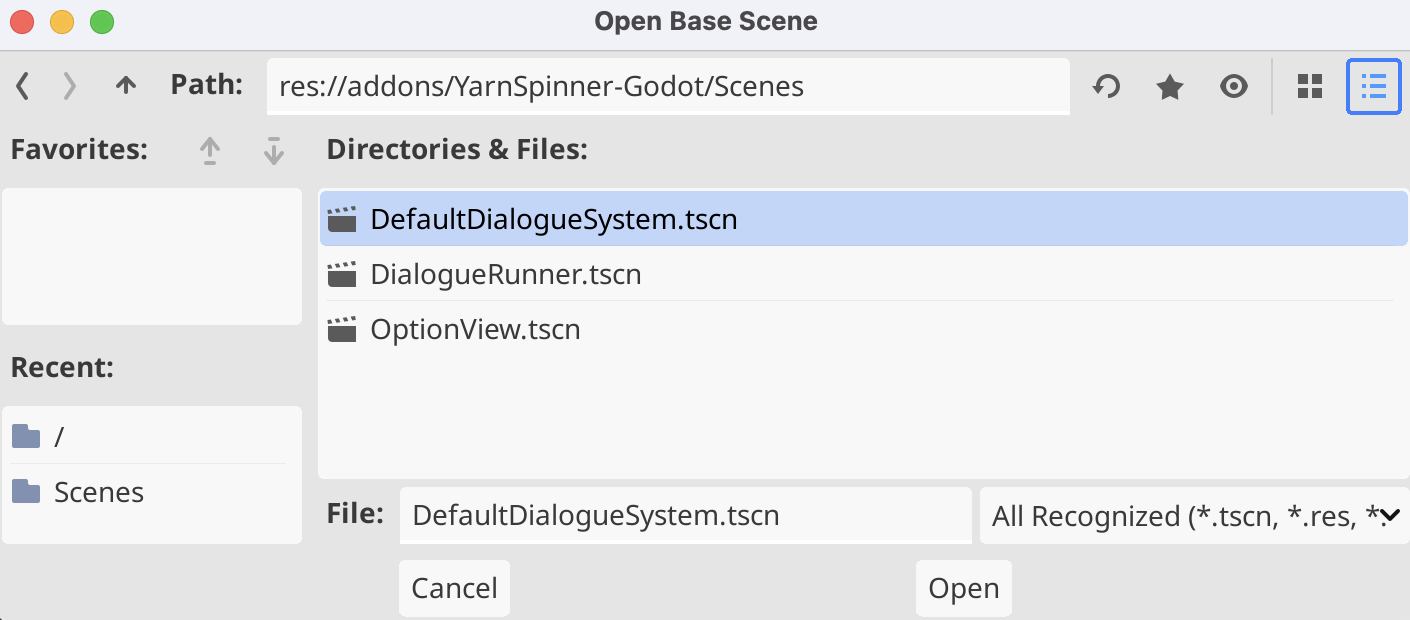
And navigate into the `addons/YarnSpinner-Godot/Scenes` folder of your project, and choose the `DefaultDialogueSystem.tscn` file as the scene to instantiate:

<figure><img src="https://463139507-files.gitbook.io/~/files/v0/b/gitbook-x-prod.appspot.com/o/spaces%2FGAKWviXNATe9kDFWZAco%2Fuploads%2Fgit-blob-8844a157500928fd4da1bd00541f5db5ce73ec81%2FScreenshot%202023-10-17%20at%203.34.26%E2%80%AFpm.png?alt=media" alt="" width="563"><figcaption><p>Choosing the provided <code>DefaultDialogueSystem.tscn</code>.</p></figcaption></figure>

Then, right click the new scene in the Scene dock, and check the "Editable Children" option. This will allow you to view all of the components that make up the default dialogue system, and set options on them in the inspector dock.

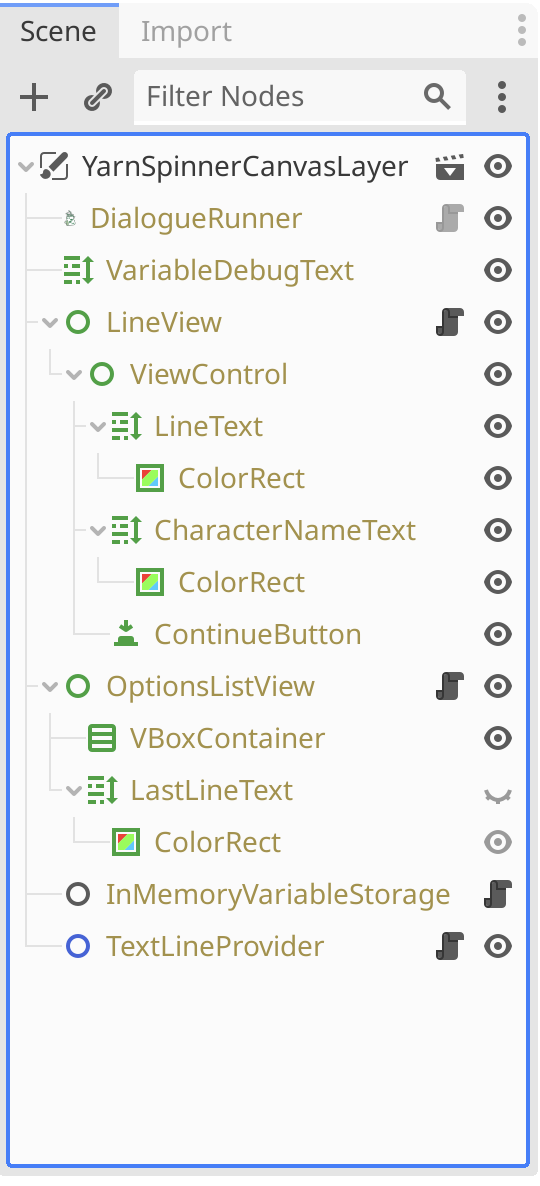
Your Scene dock will look like this showing a node hierarchy that's entirely based on the `DefaultDialogueSystem.tscn` scene that you instantiated:

<figure><img src="https://463139507-files.gitbook.io/~/files/v0/b/gitbook-x-prod.appspot.com/o/spaces%2FGAKWviXNATe9kDFWZAco%2Fuploads%2Fgit-blob-66a31806ba9d2e0655b2522dd6370bee18fa69c8%2FScreenshot%202023-10-18%20at%2010.30.49%E2%80%AFam.png?alt=media" alt="" width="405"><figcaption><p>The <code>DefaultDialogueSystem</code> instantiated into your scene.</p></figcaption></figure>

{% hint style="info" %}
You could also instantiate the `DefaultDialogueSystem.tscn` into your scene at a lower part of the hierarchy, instead of the root node, to display dialogue using the provided default UI, instead.
{% endhint %}

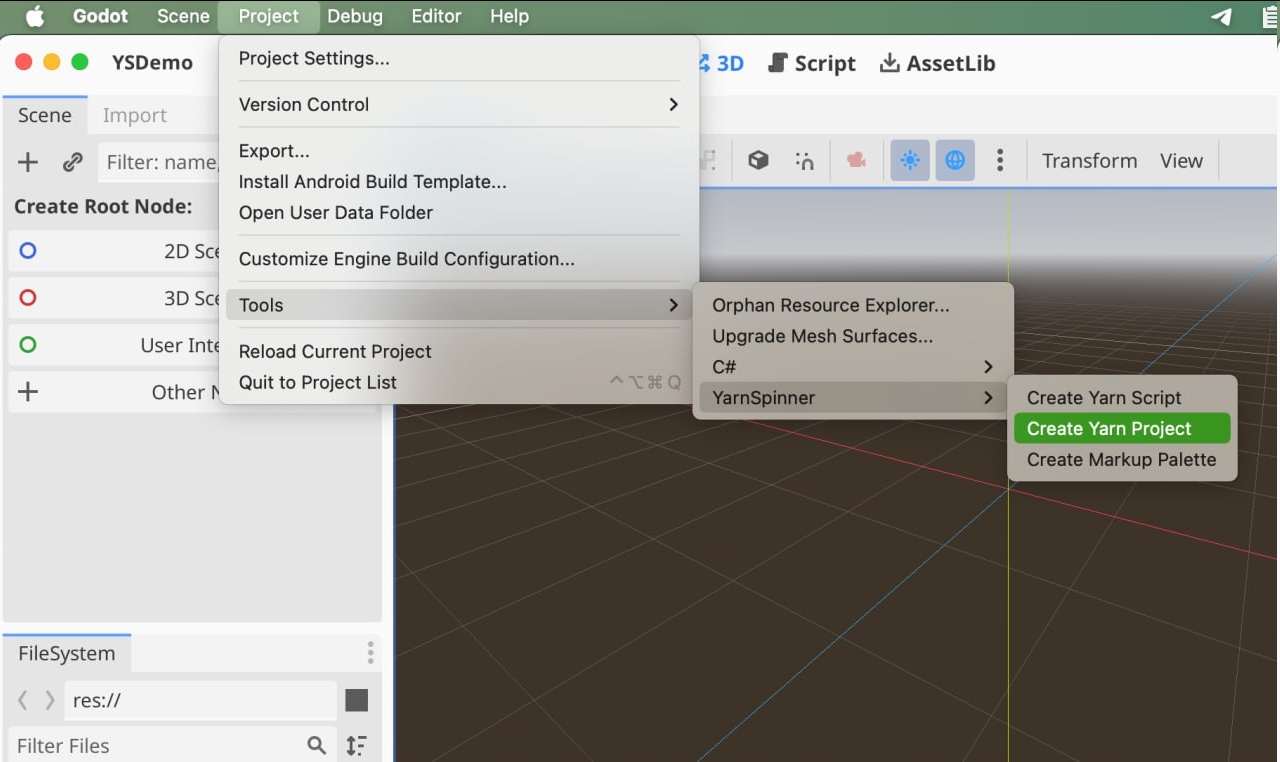
Next, create a new Yarn Project using the menu Tools > YarnSpinner >Create Yarn Project:

<figure><img src="https://463139507-files.gitbook.io/~/files/v0/b/gitbook-x-prod.appspot.com/o/spaces%2FGAKWviXNATe9kDFWZAco%2Fuploads%2Fgit-blob-cab7f082d8445907ec48446d25cf54ac37c864e4%2FYarnSpinnerGodot-Create-YarnProject.png?alt=media" alt="" width="563"><figcaption><p>Opening the menu to create a new .yarnproject file.</p></figcaption></figure>

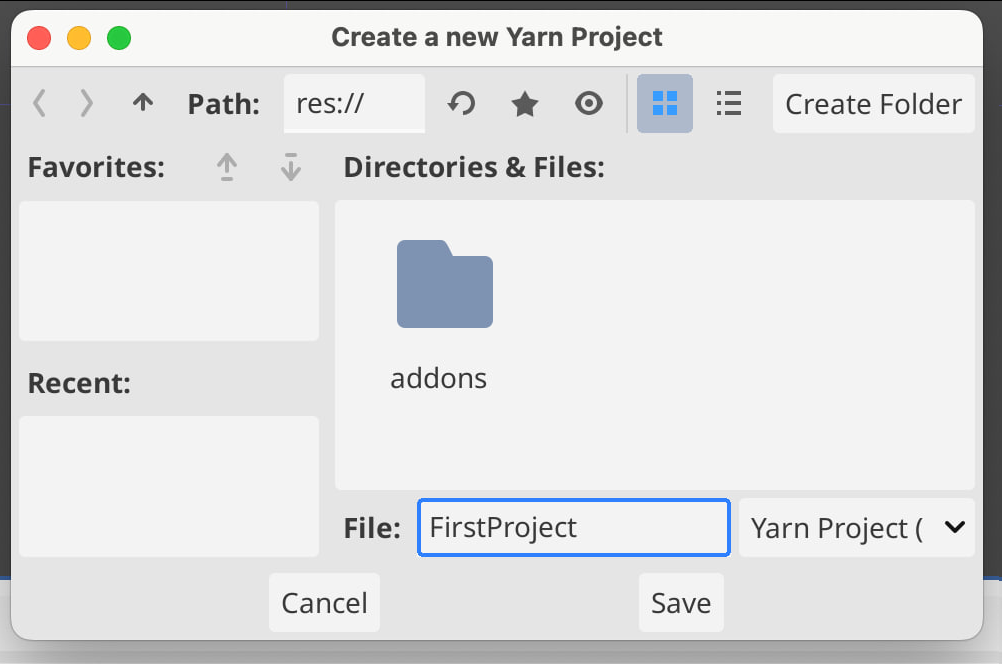
Then choose a directory to save your new YarnProject in. For example, you can save it to the root of your project. Name the new Yarn Project `FirstProject.yarnproject`:

<figure><img src="https://463139507-files.gitbook.io/~/files/v0/b/gitbook-x-prod.appspot.com/o/spaces%2FGAKWviXNATe9kDFWZAco%2Fuploads%2Fgit-blob-ea2270b57908a3129db37ddb57095445a0fec37e%2FYarnSpinnerGodot-Create-YarnProject-Dialog.png?alt=media" alt="" width="563"><figcaption><p>Selecting a location to save your .yarnproject file.</p></figcaption></figure>

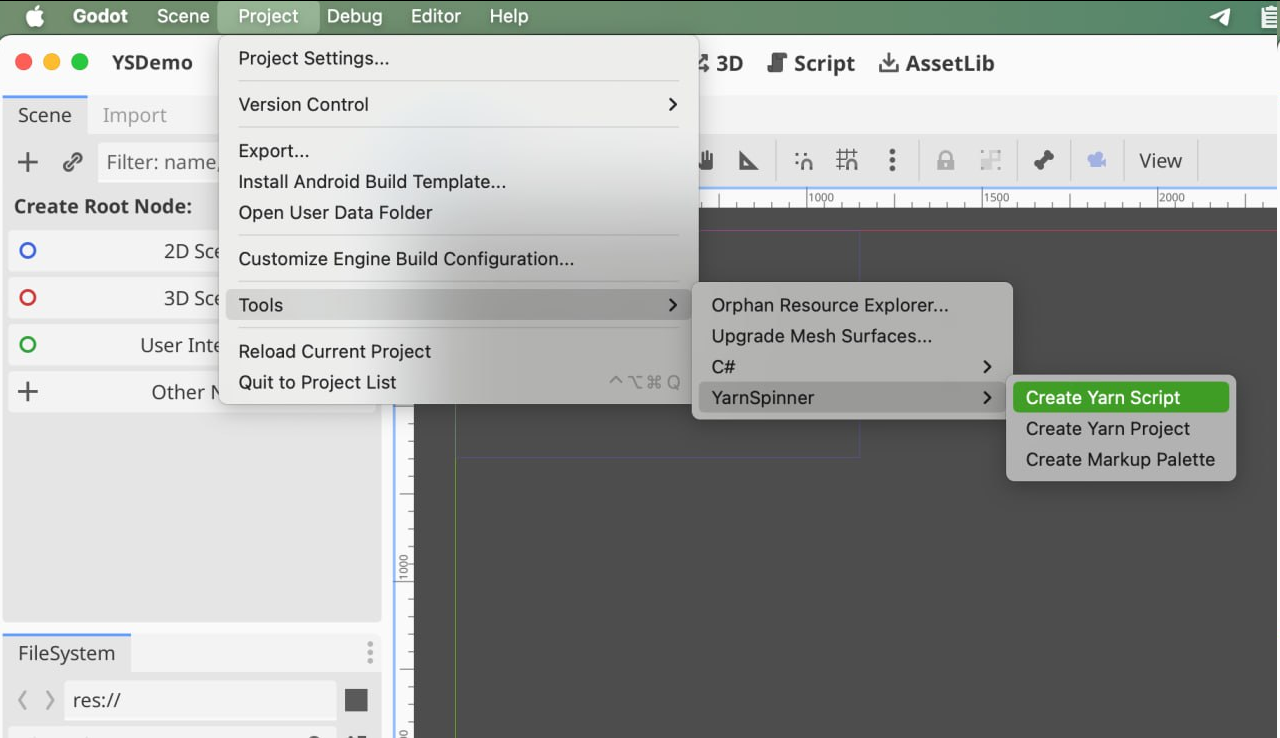
Next, create a new Yarn script (a file with a `.yarn` extension) by using the menu Tools > YarnSpinner >Create Yarn Script. In the resulting "Create a new Yarn Script" window, set the File name to `MyStory.yarn`, and click the Save button::

<figure><img src="https://463139507-files.gitbook.io/~/files/v0/b/gitbook-x-prod.appspot.com/o/spaces%2FGAKWviXNATe9kDFWZAco%2Fuploads%2Fgit-blob-3190cdab968fa3d54e1c062e9a6d54a9ca2828ed%2FYarnSpinnerGodot-Create-YarnScript.png?alt=media" alt="" width="413"><figcaption><p>Opening the Create Yarn Script window</p></figcaption></figure>

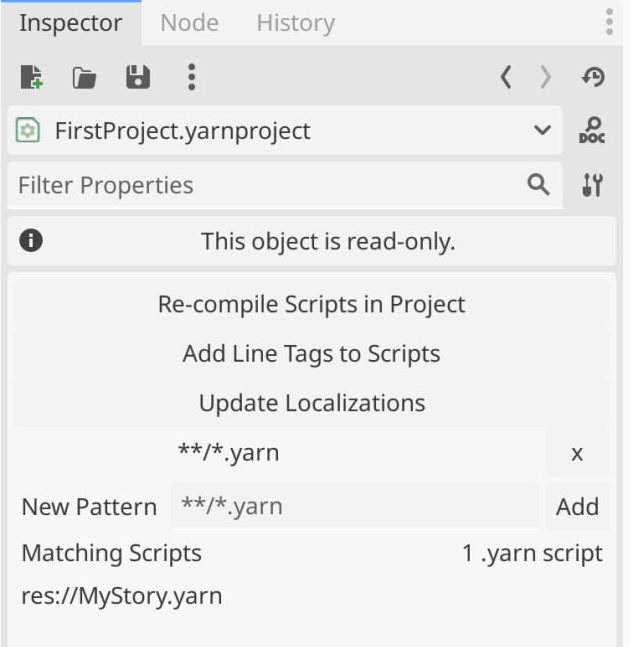
It may take a moment, but Godot will import your new `.yarn` file, and it will appear in the FileSystem dock. When it's appeared, double-click on the Yarn Project, `FirstProject.yarnproject` in the FileSystem dock and look to the Inspector, making sure that `res://MyStory.yarn` is in the list of Source Scripts, which are the Yarn scripts that compromise the new project:

<figure><img src="https://463139507-files.gitbook.io/~/files/v0/b/gitbook-x-prod.appspot.com/o/spaces%2FGAKWviXNATe9kDFWZAco%2Fuploads%2Fgit-blob-4895eab197ddb779625d6c1a56c746250196b2cd%2FYarnSpinnerGodot-YarnProject-Inspector.png?alt=media" alt="" width="563"><figcaption><p>The Yarn Project, with the Yarn script identified as a Source Script.</p></figcaption></figure>

Next, open the `MyStory.yarn` file in VS Code, and add the following Yarn script to it, before saving it and returning to Godot:

<details>

<summary>MyStory.yarn</summary>

```
title: Start
tags:
---
Narrator: Oh, hello!
    -> Hi, where am I?
        Narrator: You're in Godot!
            -> Oh.
                <<jump Oh>>
            -> How did I get here?
                <<jump Godot>>
===

title: Oh
---
Narrator: Yeah, fun, right?
===

title: Godot
---
Narrator: Someone read the Beginner's Guide!
===
```

</details>

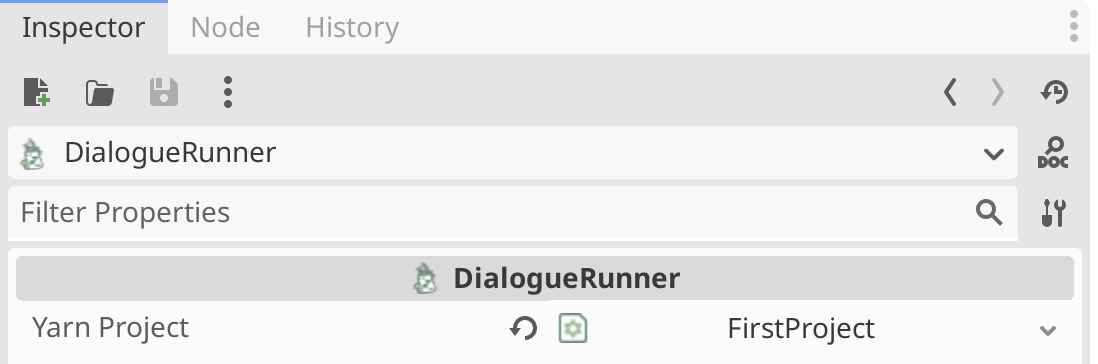
Select the `DialogueRunner` node in the Scene dock, and look to the Inspector. Selecting "Editable Children" earlier in the guide is what will allow you to see the `DialogueRunner` node and edit its options. Assign the Yarn Project you created to the `DialogueRunner` by dragging the `FirstProject.tres` Yarn Project from the FileSystem dock into the Yarn Project slot of the Inspector:

<figure><img src="https://463139507-files.gitbook.io/~/files/v0/b/gitbook-x-prod.appspot.com/o/spaces%2FGAKWviXNATe9kDFWZAco%2Fuploads%2Fgit-blob-562769bf2a0bd433513325477e5513ec9493f8c5%2FScreenshot%202023-10-18%20at%2010.34.38%E2%80%AFam.png?alt=media" alt="" width="563"><figcaption><p>The new Yarn Project resource assigned as the Yarn Project for the <code>DialogueRunner</code>.</p></figcaption></figure>

Finally, enter `Start` as the Start Node, and tick the box next to Starts Automatically:

<figure><img src="https://463139507-files.gitbook.io/~/files/v0/b/gitbook-x-prod.appspot.com/o/spaces%2FGAKWviXNATe9kDFWZAco%2Fuploads%2Fgit-blob-5f8e3fa3df493d5055e00304f0cacf12d57d506e%2FScreenshot%202023-10-18%20at%2010.35.23%E2%80%AFam.png?alt=media" alt="" width="563"><figcaption><p>Setting the Start Node, and that we want this <code>DialogueRunner</code> to start automatically.</p></figcaption></figure>

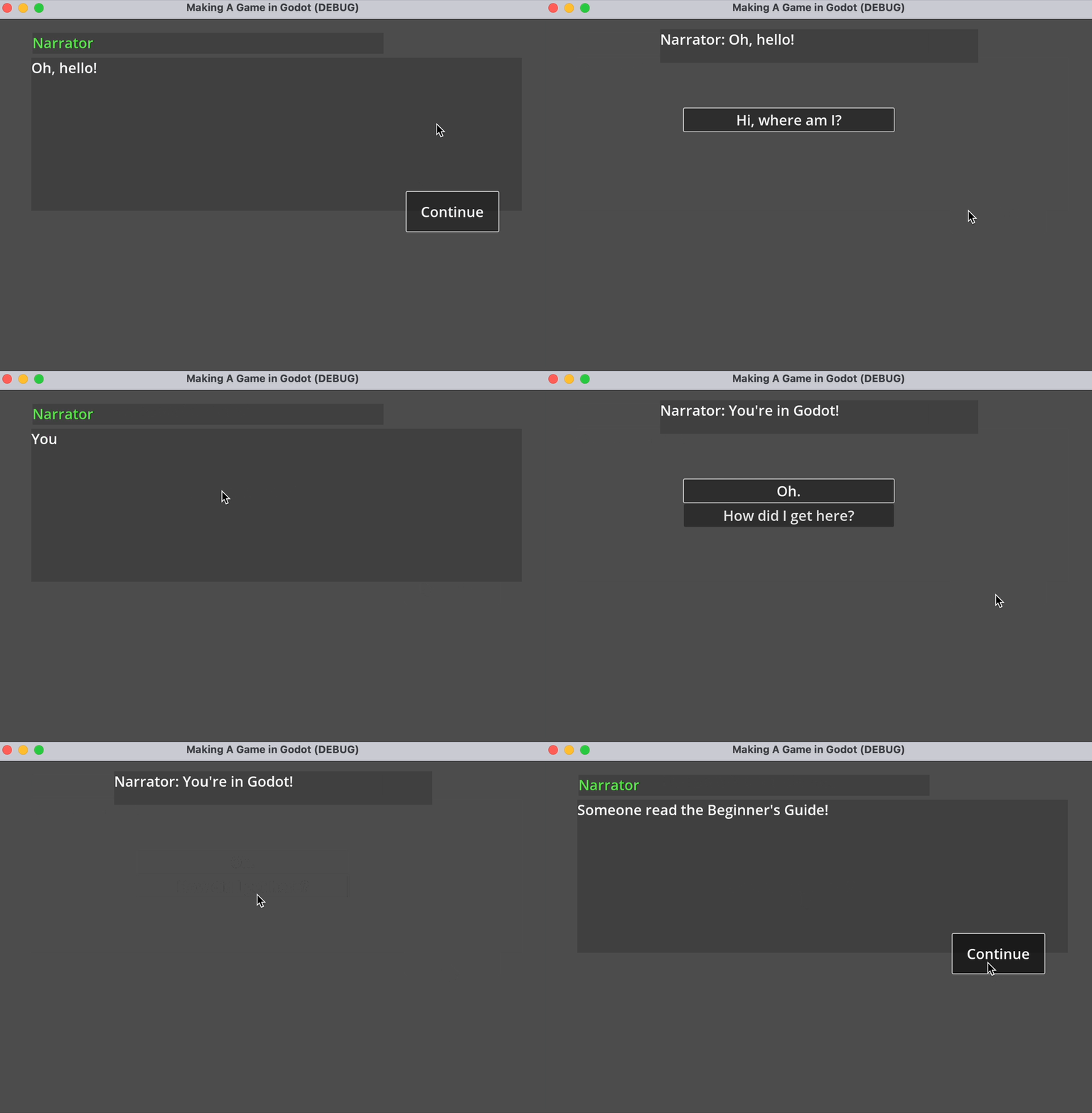
Save your scene as `Demo.tscn`, and run the game. At this point, you can play your project, and step through the dialogue in the default Yarn Spinner for Godot Line Presenter and Options Presenter:

<figure><img src="https://463139507-files.gitbook.io/~/files/v0/b/gitbook-x-prod.appspot.com/o/spaces%2FGAKWviXNATe9kDFWZAco%2Fuploads%2Fgit-blob-4078c2b43c9cc37081b0256425adde28985281a7%2Fbeginnersgodot.gif?alt=media" alt="" width="563"><figcaption></figcaption></figure>

## Next steps with Yarn Spinner for Godot <a href="#next-steps-with-yarn-spinner-for-godot" id="next-steps-with-yarn-spinner-for-godot"></a>

With that, we've reached the end of our beginner's guide. You're ready go forth and build games with Yarn Spinner! You're also equipped to work with the rest of the documentations here! Don't forget to [join the Discord](https://discord.com/invite/yarnspinner) to chat with other Yarn Spinner users, the Yarn Spinner team, seek help, and share your work.